
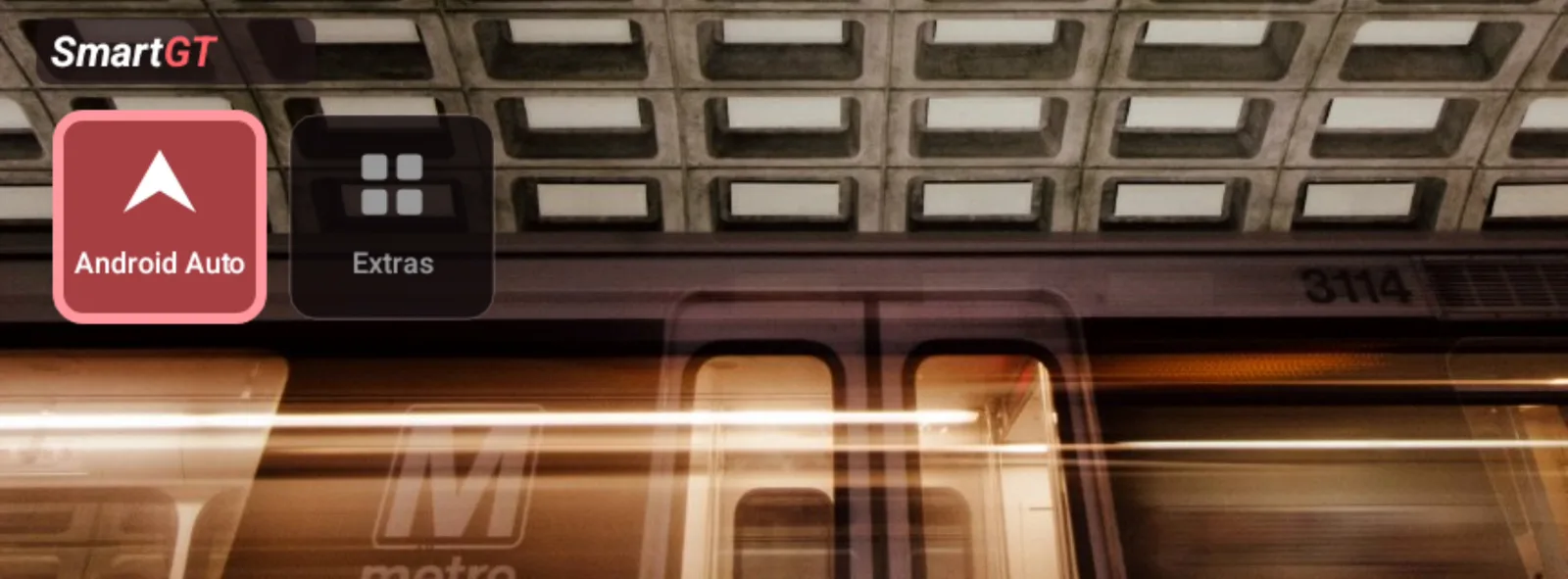
Use your own photo
Choose a photo from your phone and use it as your Home background.



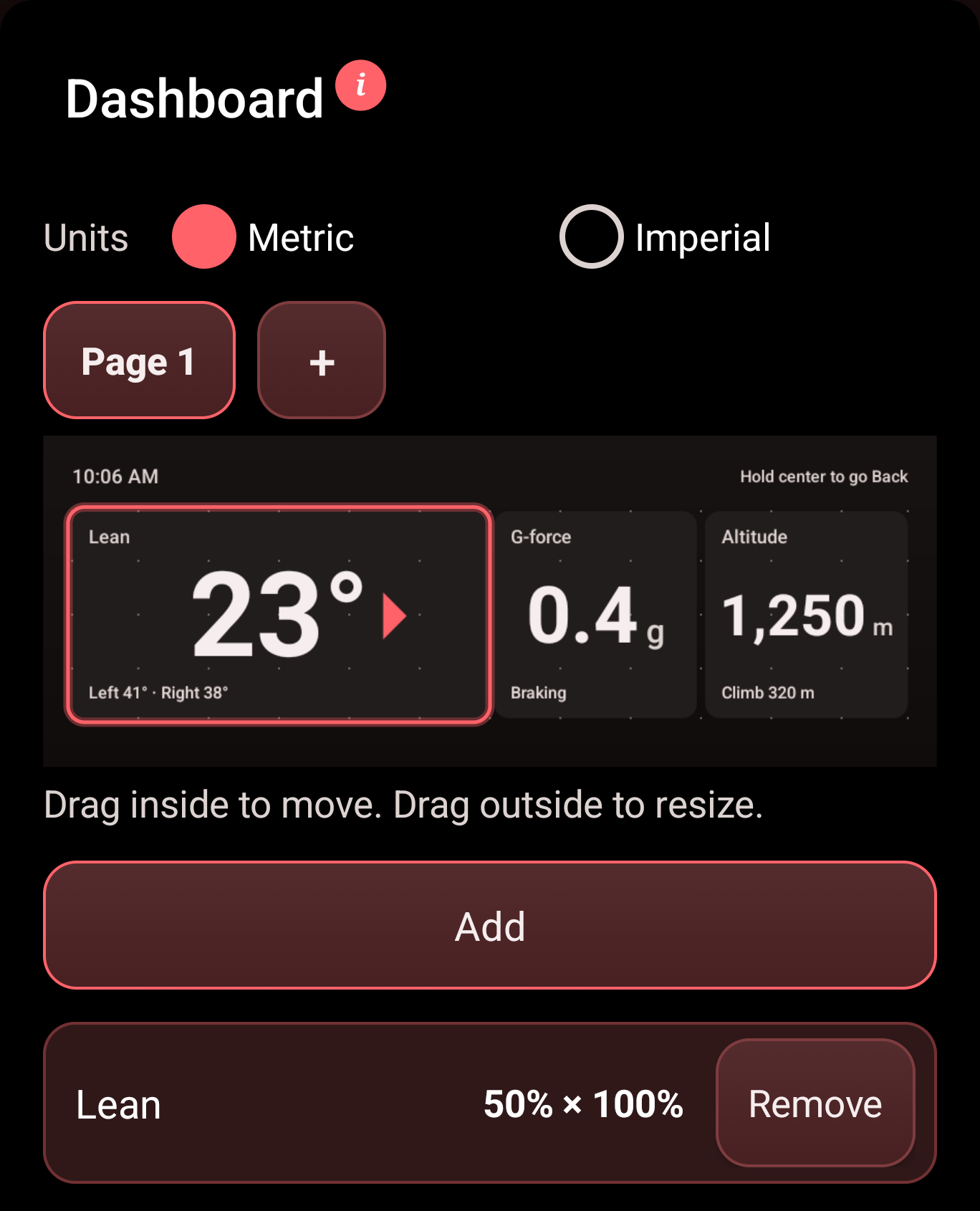
Set up Home and Dashboard on your phone. See them on your motorcycle’s factory screen, with Android Auto for maps and music.
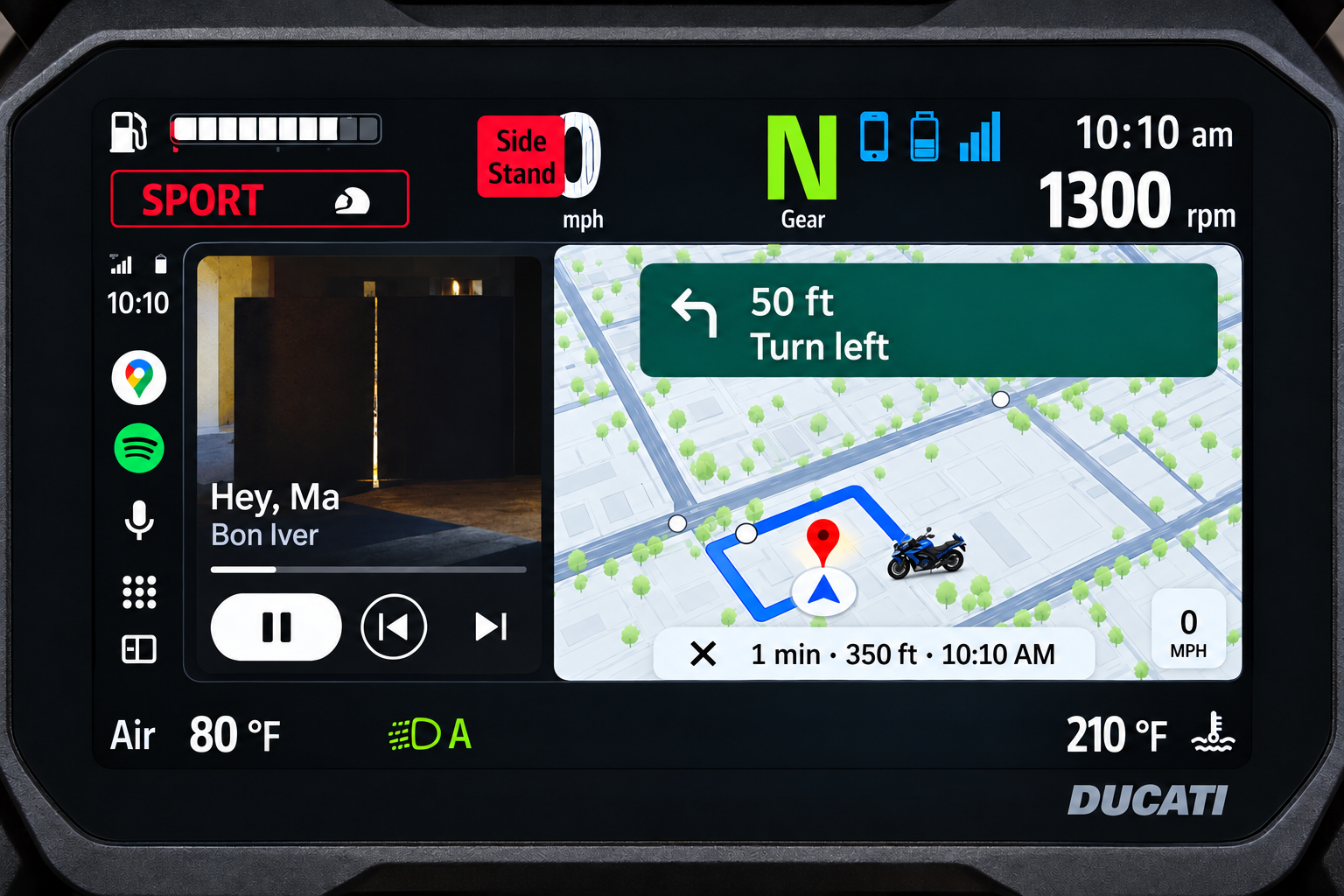
Android 12+ Factory Ducati Connect equipment
See how each background looks on the TFT.
Choose a photo from your phone and use it as your Home background.
Watch shapes and colors move behind your Home controls.
With location enabled, the sky shifts as your direction of travel changes. The scene automatically matches your bike’s day or night mode. Add a speed display if you like.
Choose what you want to see while you ride.
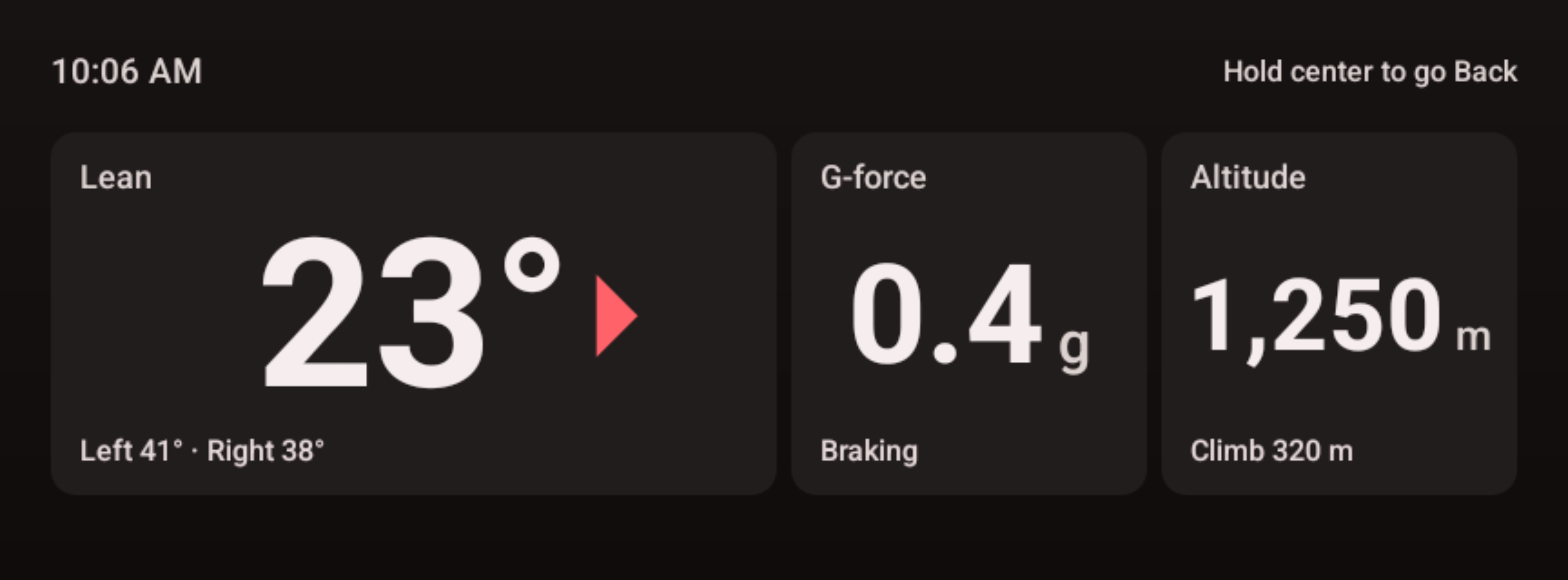
Keep your own Home screen on the TFT. Call on your phone’s AI assistant when you want directions, music or an answer.
Use a supported Up or Down hold on SmartGT Home. Choose its action in the app.
Voice assistance needs Android Auto running in the background, a compatible headset and voice setup.
A LITTLE HELP, WHEN YOU WANT IT
“Take me to the nearest petrol station.”
“Play my riding playlist.”
The idea that came on a quiet road. Where you parked. The name of the rider you just met.
Record a voice note while it’s fresh. Find it on your phone after the ride.
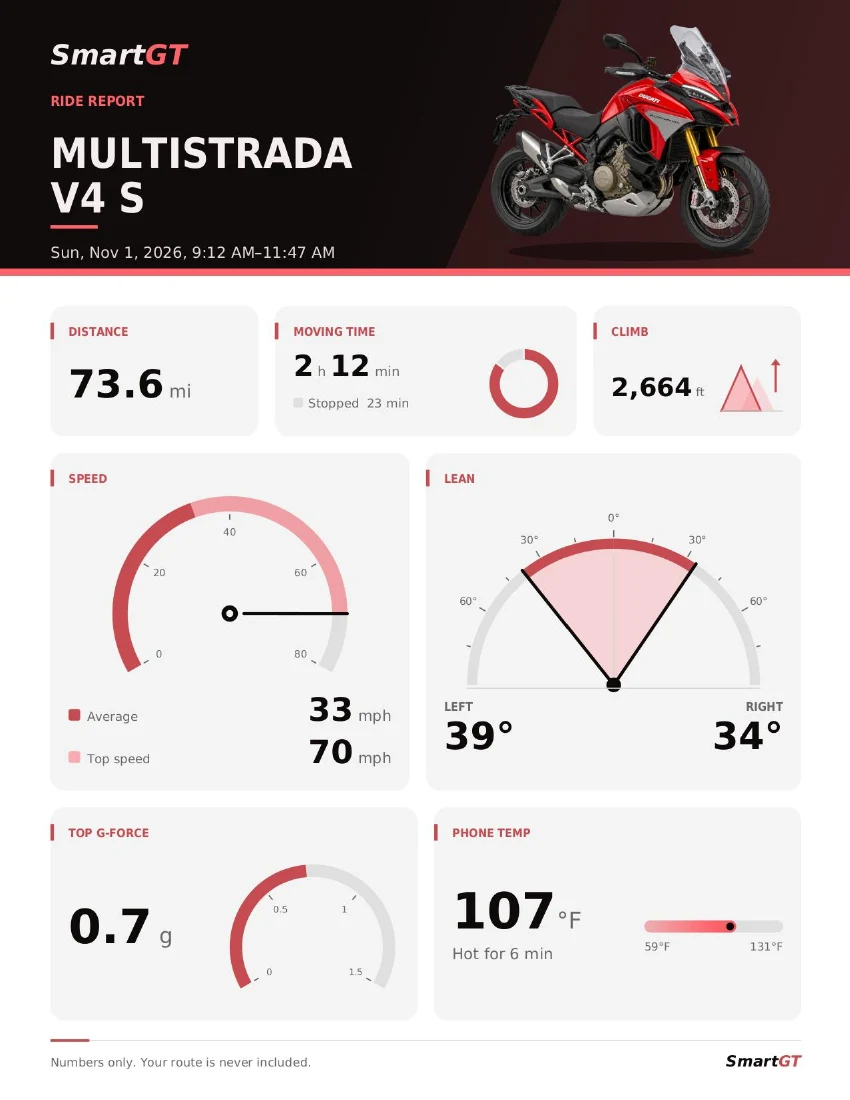
Save or share a PDF with distance, moving time, climb and other stats from your ride.
Open sample PDFExample from testing · PDF in English
Check the fit. Then picture SmartGT Home on the motorcycle you ride.
 DUCATI
V4 S / V4 S Sport
Pikes Peak / Rally
V4 S Grand Tour / V4 RS
Ducati Connect equipment required. Base V4 is excluded. Equipment varies by model year and market.
Android 12 or newer
Android Auto and Google services
Confirm that your exact motorcycle has Ducati Connect. Ducati Link is a different system. Select the matching model in SmartGT and complete setup while parked.
Multistrada V4 S · Red
Choose your bike artwork and color, or add your own photo in the app. Keep your background still or add motion.
Try Android Auto and the voice assistant on your bike for free. Eligible new subscribers can start the trial in Google Play.
The free features stay available after the trial. To avoid a charge, cancel in Google Play before the trial ends. Otherwise, billing begins and your subscription renews automatically.
Prices in US dollars
$4.99
Per month
$29.99
Per year
$99.99
One-time purchase
Google Play shows your local price, trial eligibility and renewal terms before you buy.
Uninstall the Ducati Connect app from your phone. Install SmartGT and follow guided setup. Enable Android Auto developer mode and its head unit server.
Choose your exact model and motorcycle TFT in SmartGT. Use your bike’s Ducati Connect system, following the guide.
Set up your Home screen and button actions. Finish your first connection while parked.
No extra display or dongle is required for a supported setup. SmartGT uses your Android phone and a compatible factory TFT.
Audio and voice depend on your phone, headset and how they’re connected to the phone or motorcycle. Follow the setup guide for your combination.
Your SmartGT notes stay on your phone, ready to revisit after your ride.
Email [email protected] with your motorcycle model and year, phone model, Android version, app version and what happened.